
EmVBGet started

Visual page builder for EmDash CMS 1.0

Design on a canvas. Ship plain HTML.

EmVB puts a full visual editor inside the EmDash admin: layers, live styles, states, devices and a site-wide design system. Visitors get the markup and the CSS, not the builder.

  • React + Kumo editor in the EmDash admin
  • Plain HTML and CSS on the public site
  • Node + SQLite or Cloudflare + D1
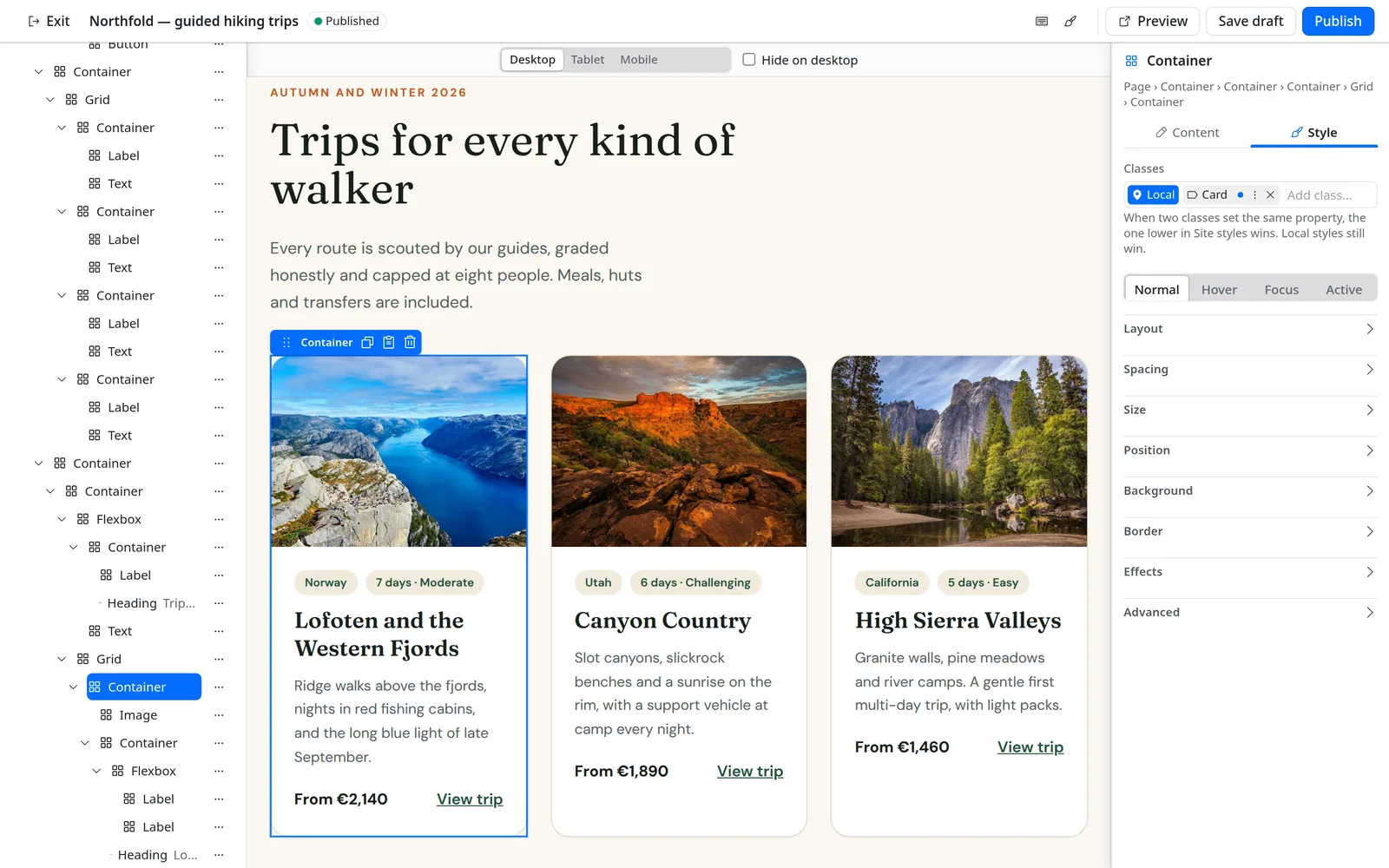
The EmVB editor: Layers tree on the left, a page with three trip cards on the canvas, a selected card with its Style panel on the right.
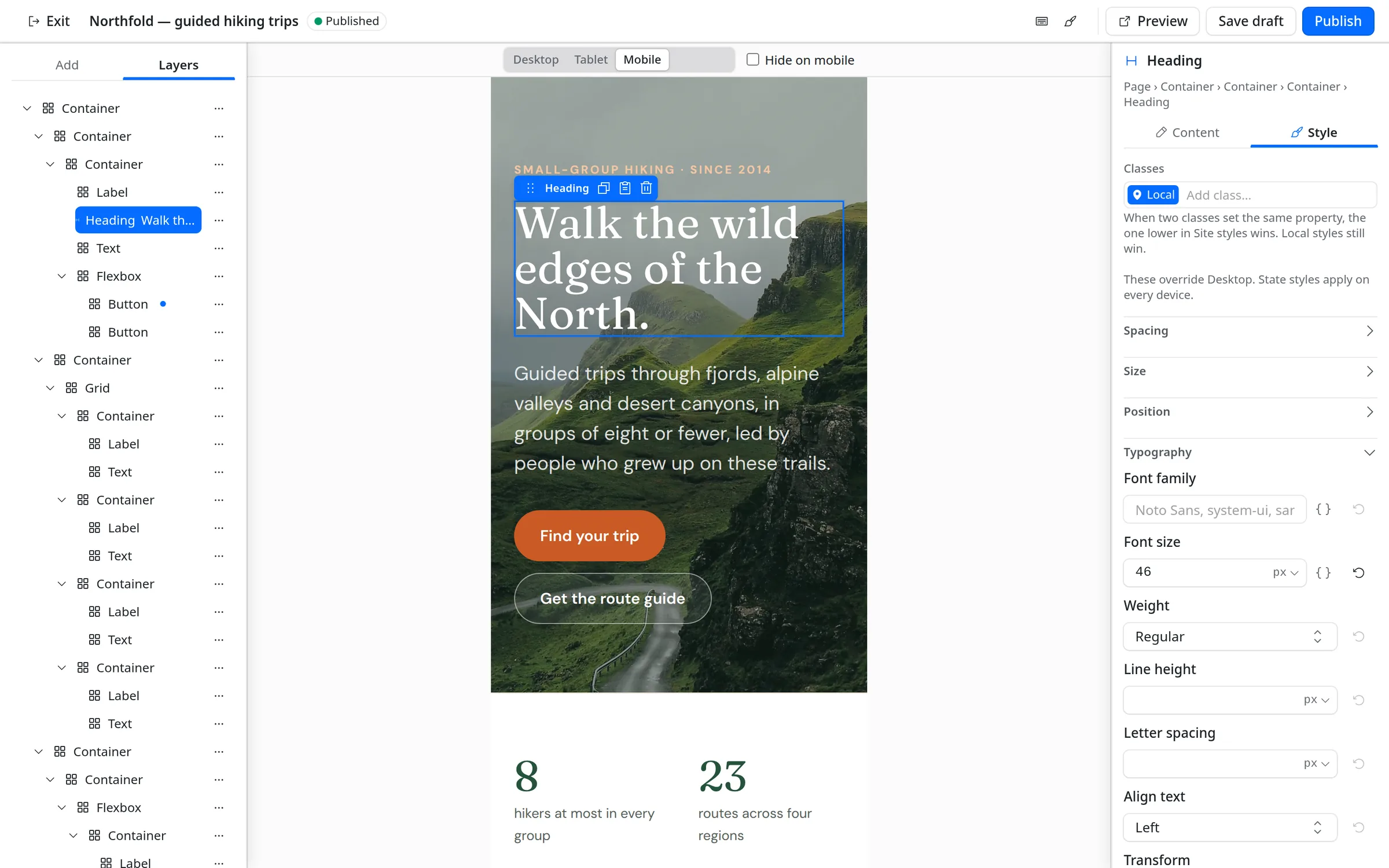
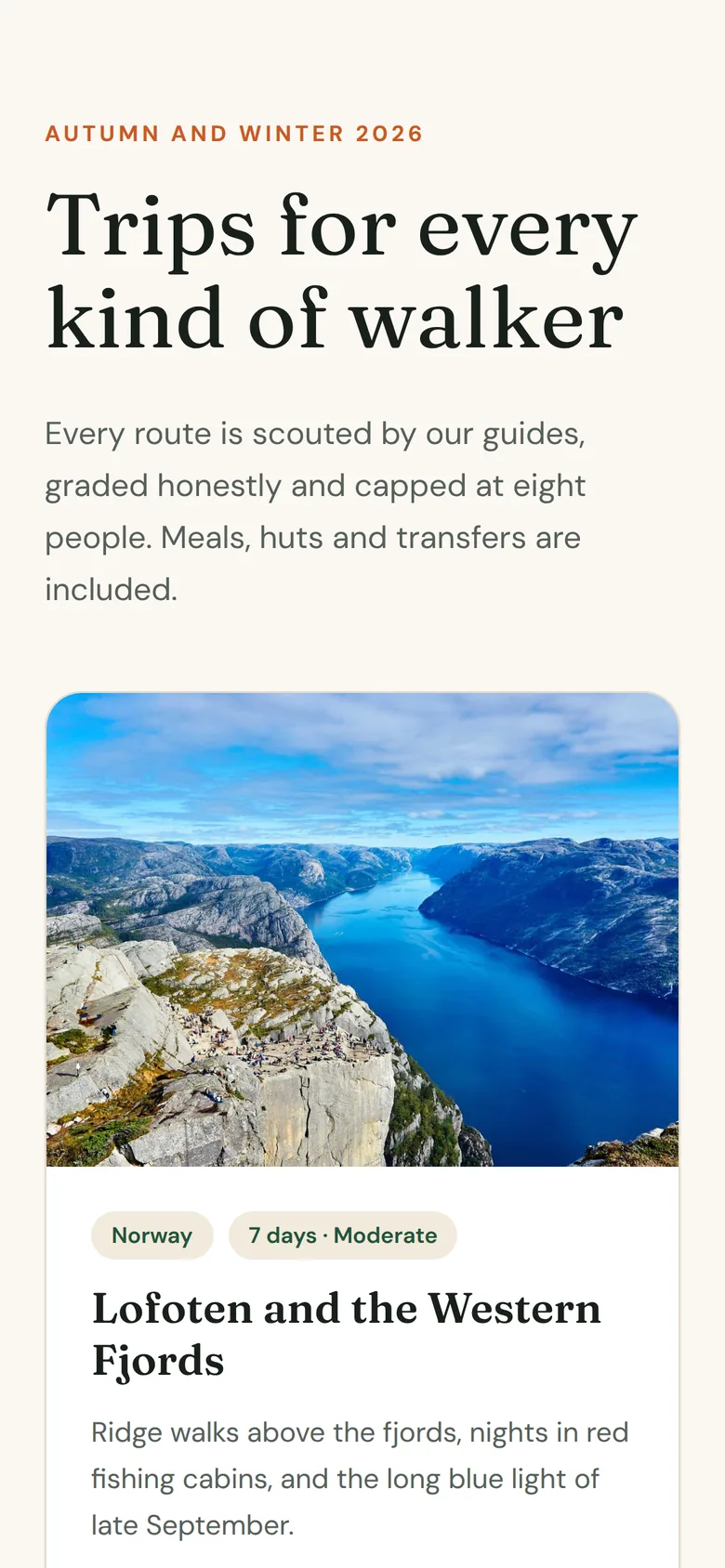
The Northfold hero on a phone, with the navigation hidden and the buttons stacked.

Features

A real builder, not a block editor

EmVB covers what site builders expect from a visual editor, and keeps the output small enough to read.

01Build

Drag, drop, nest
Drop elements from the Add panel onto the canvas, then reorder and nest them in the Layers tree.
Edit text in place
Double-click a heading or paragraph on the canvas and type.
Copy, paste, undo
Copy elements and styles, paste them elsewhere, and step back through up to 100 edits with Ctrl or Cmd + Z.
Synced sections and templates
A Section element renders a shared Section part live. New pages can start from a page template.

02Style

Four states
Normal, Hover, Focus and Active, each with its own styles, plus transitions between them.
Per device
Tablet (up to 1024 px) and mobile (up to 767 px) overrides, and hide on device.
Backgrounds
Images, two-stop gradients, colour overlays and background video.
Grid and flexbox
Flexbox and CSS Grid containers, with 1 to 12 columns and column spans.
Entrance animations
Fade, fade up or down, slide up or down and scale, with a delay. Reduced motion turns them off.
Attributes
Custom data-* and aria-* attributes on any element.

03Design system

Variables
Colours, fonts, font sizes and spacings, published as CSS custom properties.
Classes with a clear order
When two classes set the same property, the one lower in the list wins. Local styles still win.
Tag defaults
Set the look of every h1, paragraph or link once.
Staged until published
Site style changes wait as a draft until you press Publish styles, then update every live page.
Import and export
Move a design between sites as JSON.

Elements

Layout
  • Section
  • Container
  • Flexbox
  • Grid
  • Div block
  • Spacer
  • Divider
Content
  • Heading
  • Text
  • Label
  • Link
  • Button
  • List
  • Icon
  • SVG
Media
  • Image
  • Video
Interactive
  • Tabs
  • Tab panel
  • Accordion
  • Accordion item
Forms
  • Form
  • Text input
  • Textarea
  • Select
  • Checkbox
  • Radio
  • Submit
Dynamic
  • Loop
  • Post title
  • Post excerpt
  • Post content
  • Post image
  • Post link
  • Post date
  • Post author

Styling

Every style property, in every state, on every device

States

Style the hover, not just the resting state

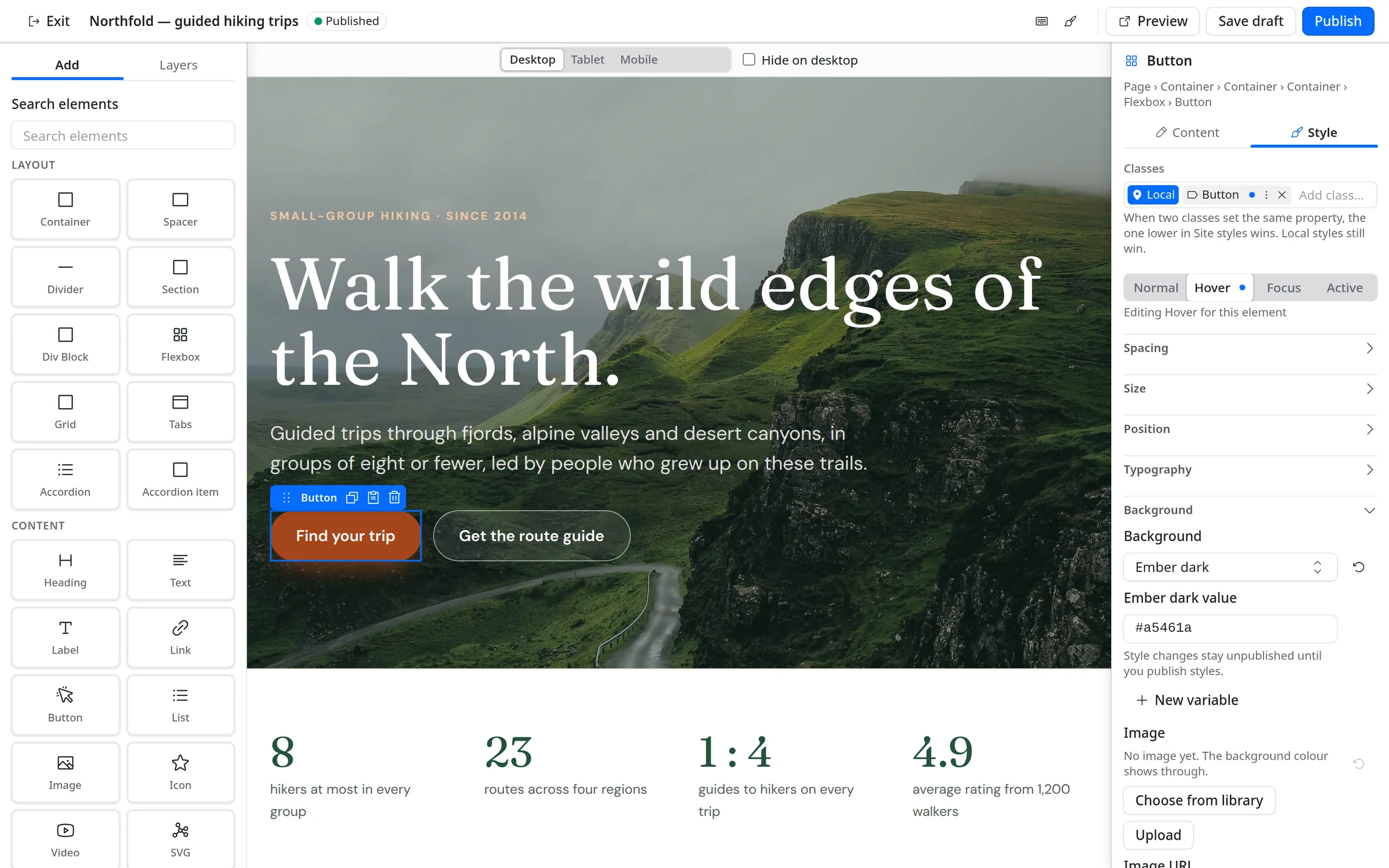
Pick Normal, Hover, Focus or Active above the style sections and edit as usual. EmVB writes the matching selector, with Focus mapped to :focus-visible.

  • Transitions between states, switched off under reduced motion
  • A dot on each state that has values
  • Works on elements and on classes
Devices

Tune every breakpoint on the same canvas

Switch the canvas to Tablet or Mobile and every change becomes an override for that size. Desktop values stay where they are.

  • Tablet up to 1024 px, mobile up to 767 px
  • Hide on desktop, tablet or mobile
  • Overrides cascade down: desktop, then tablet, then mobile

Site styles

One design system for the whole site

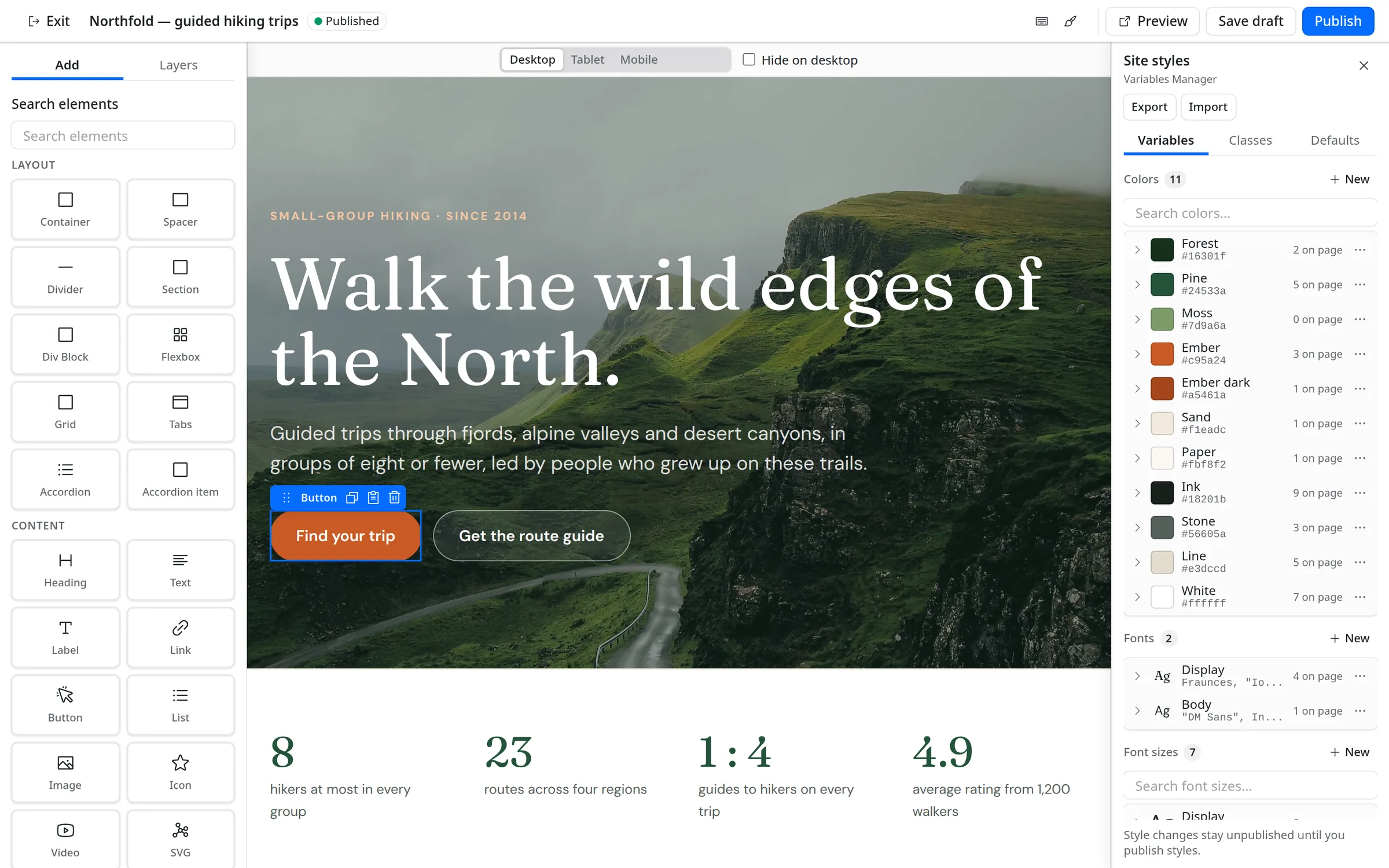
Variables, classes and tag defaults live in the Site styles drawer, next to the canvas. Changes wait as a draft until you press Publish styles, then reach every published page without republishing them.

  • Colour, font, font size and spacing variables
  • Classes with states; the lower class in the list wins
  • Design import and export as JSON
The Site styles drawer on the Variables tab, with Export and Import on their own row under the title, eleven colour variables with usage counts, and font variables below.
Open full size
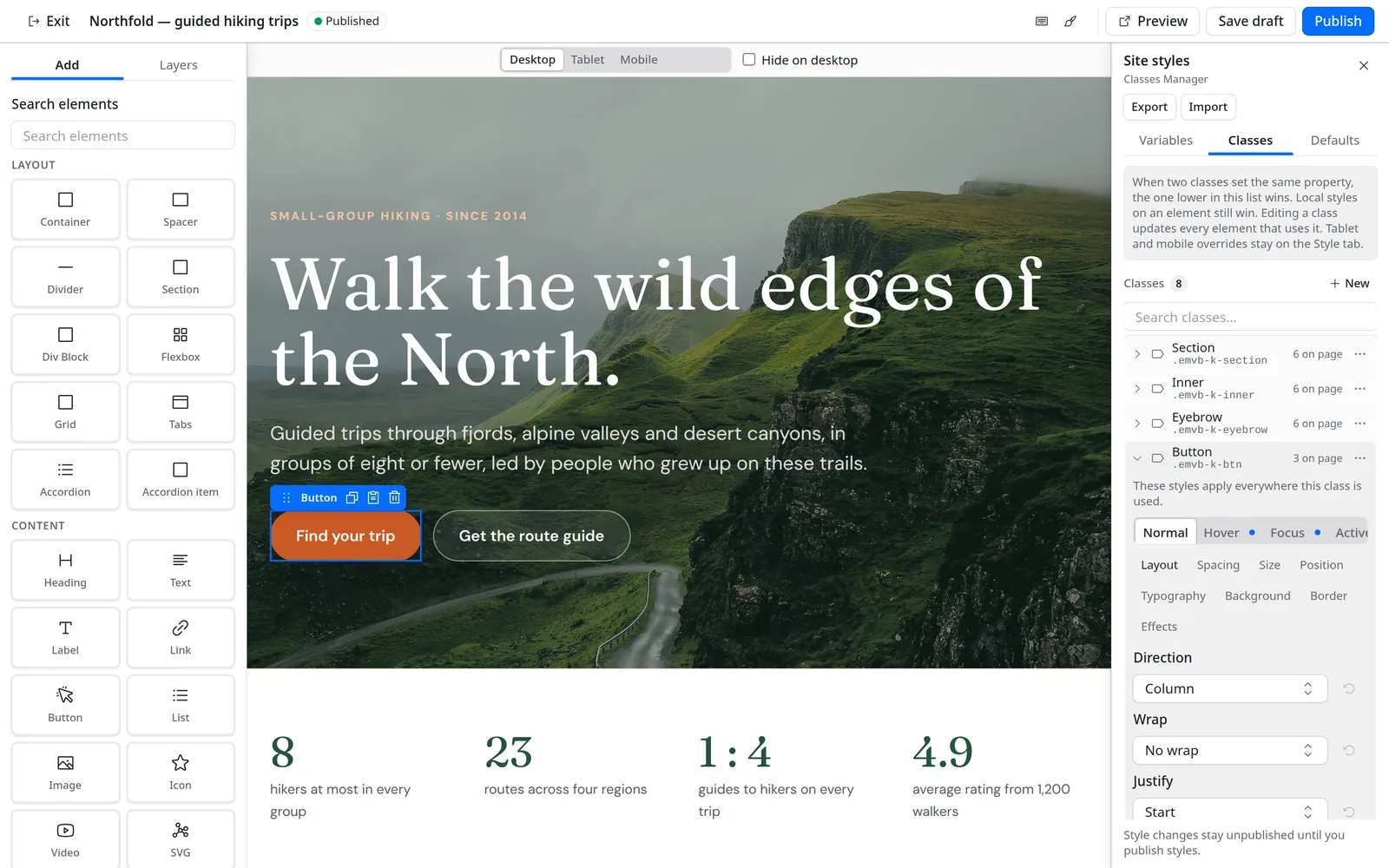
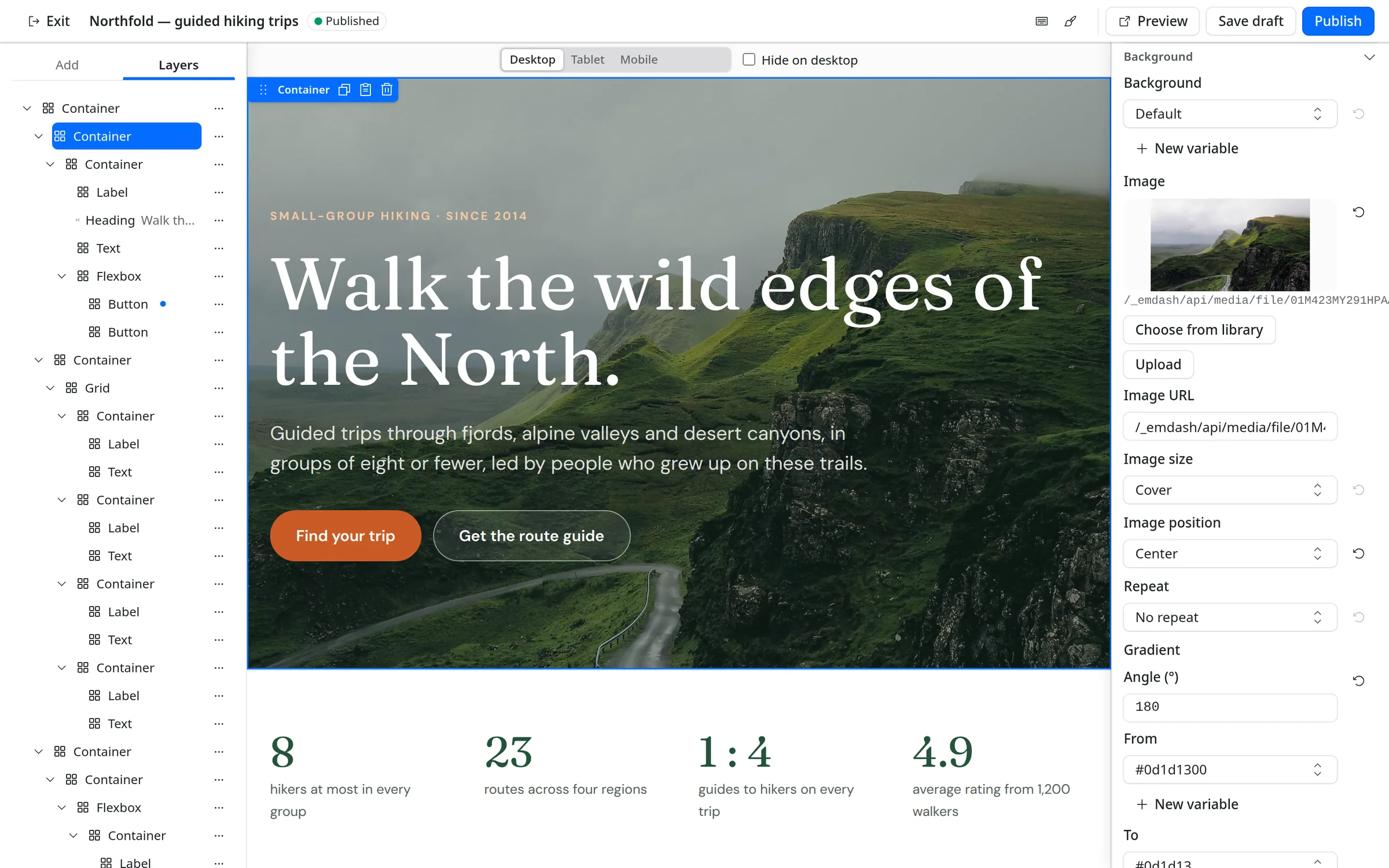
The Classes tab of the Site styles drawer, with the Button class open and its Normal, Hover, Focus and Active state tabs.
Classes tab

Backgrounds

Layered backgrounds without custom CSS

Give any box an image from the media library, a two-stop gradient on top, then a colour overlay. Or a background video.

  • Size, position and repeat for images
  • Gradient angle and two colours, from variables or values
  • Overlay colour and opacity

What visitors get

Built in the editor. Served as HTML and CSS.

Northfold is one EmVB page inside a header and footer from the Theme Builder. The only EmVB scripts it loads are for its popup and its tabs. The enquiry form uses the forms plugin’s script.

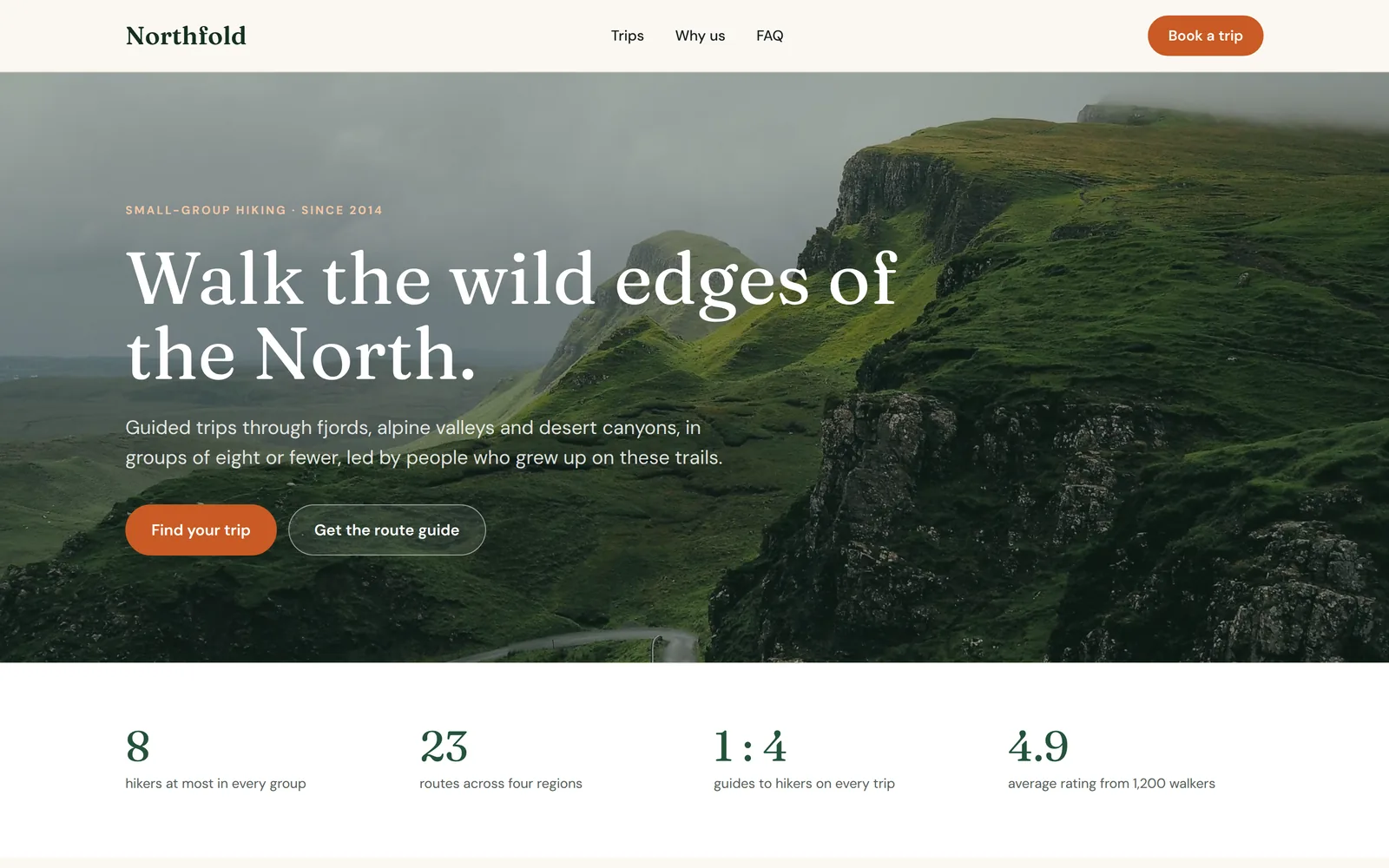
The published Northfold home page: a header with navigation and a hero photo of green ridges under the headline Walk the wild edges of the North.
The Northfold hero on a phone, with the navigation hidden and the buttons stacked.
The trip cards stacked into one column on a phone.

Real screenshots from the Node demo. Northfold is a made-up company; photos from Unsplash via Lorem Picsum.

Theme Builder

Headers, footers, templates and popups, shown where you say

Theme parts are built in the same editor. Display conditions include or exclude them for the entire site, the front page, a collection, a single entry, archives, taxonomy terms, search or the 404 page. The most specific part wins, and an exclude beats an include.

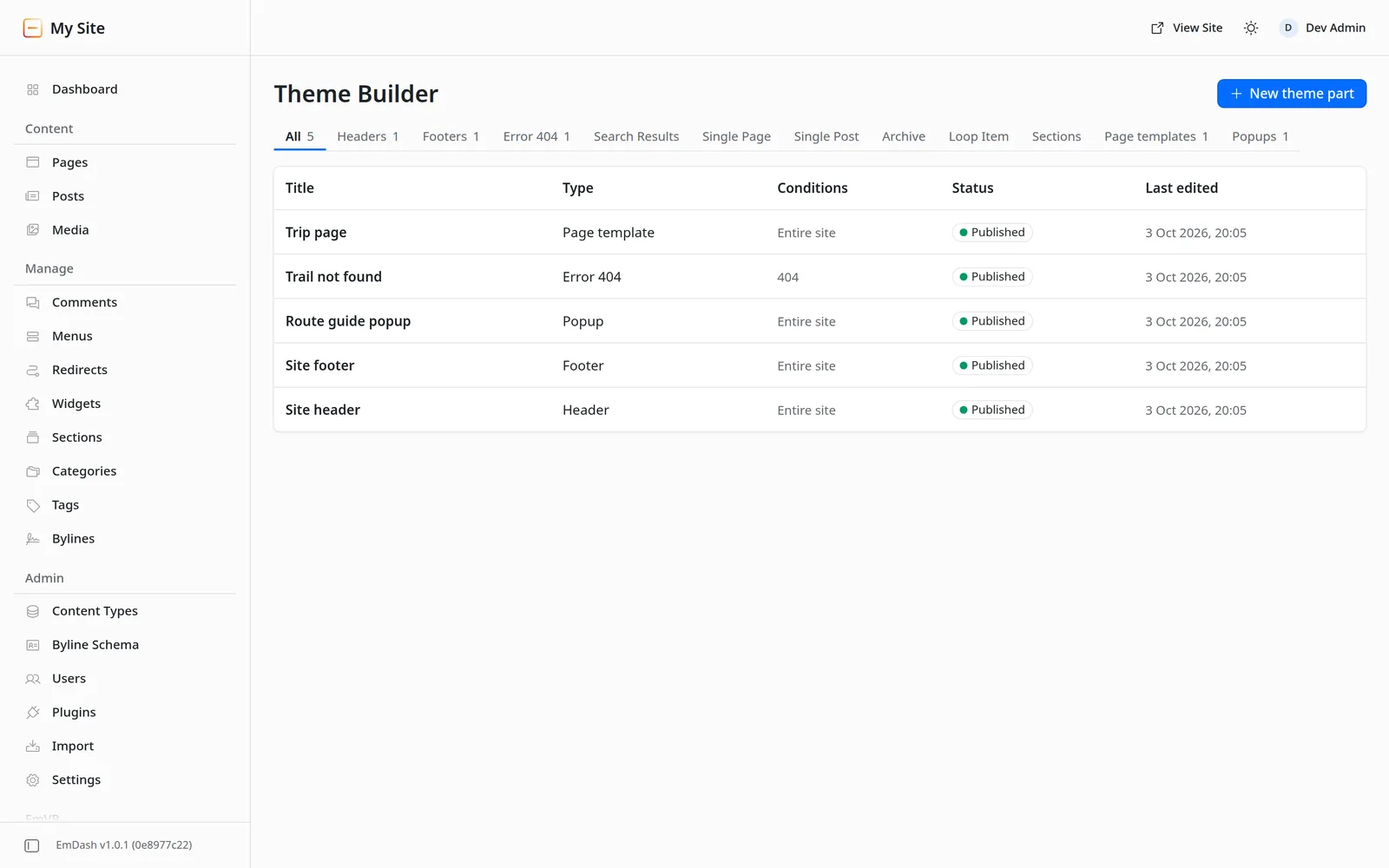
The Theme Builder list in the EmDash admin with a page template, a 404 page, a popup, a footer and a header, all published.
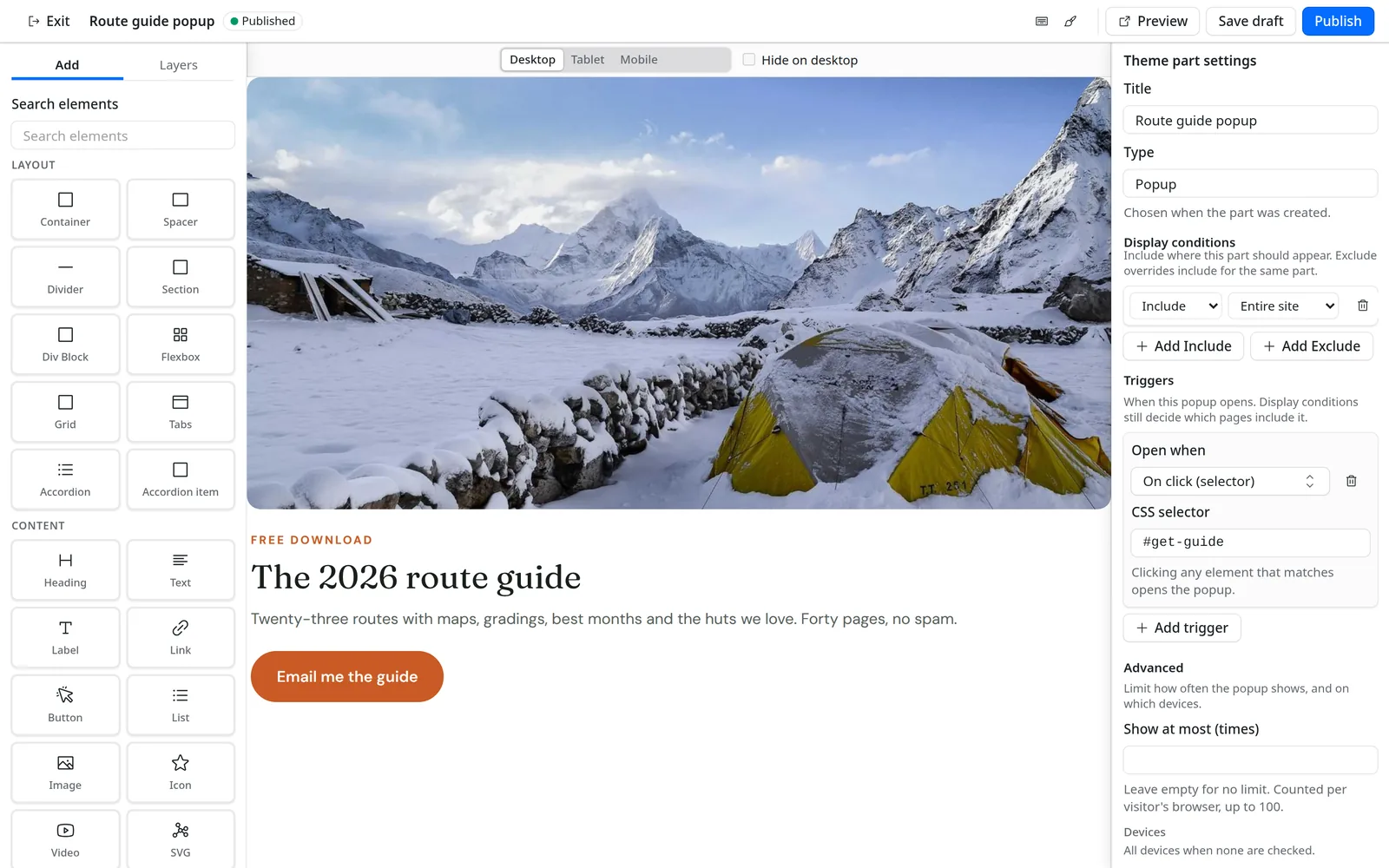
A popup theme part open in the editor; the settings panel shows an Include Entire site condition and an On click trigger for #get-guide.

Part types

  • Header
  • Footer
  • Single page
  • Single post
  • Archive
  • Search results
  • 404 page
  • Loop item
  • Section
  • Page template
  • Popup

Popup triggers

  • On page load
  • After a delay
  • On scroll
  • On click
  • On exit intent
  • After inactivity

Limit how often a popup shows and on which devices. Close and Escape return focus.

Dynamic content

Single, archive and loop item parts use Loop and post elements: title, excerpt, content, featured image, link, date and author.

More of the editor

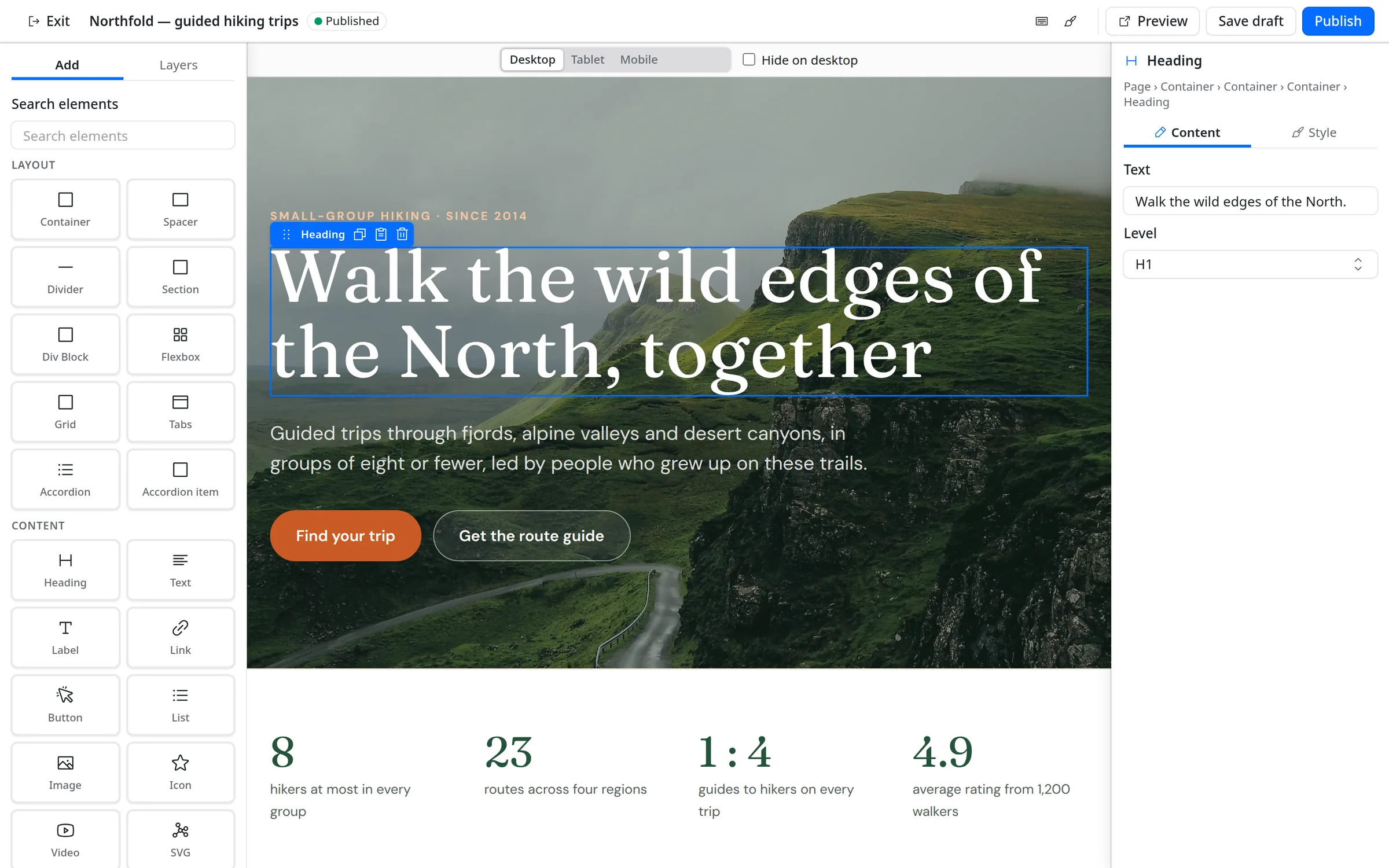
  • The hero heading being edited in place on the canvas: the text now reads Walk the wild edges of the North, together, in the heading's own font and colour.Open full size
    Double-click any text on the canvas to edit it in place.
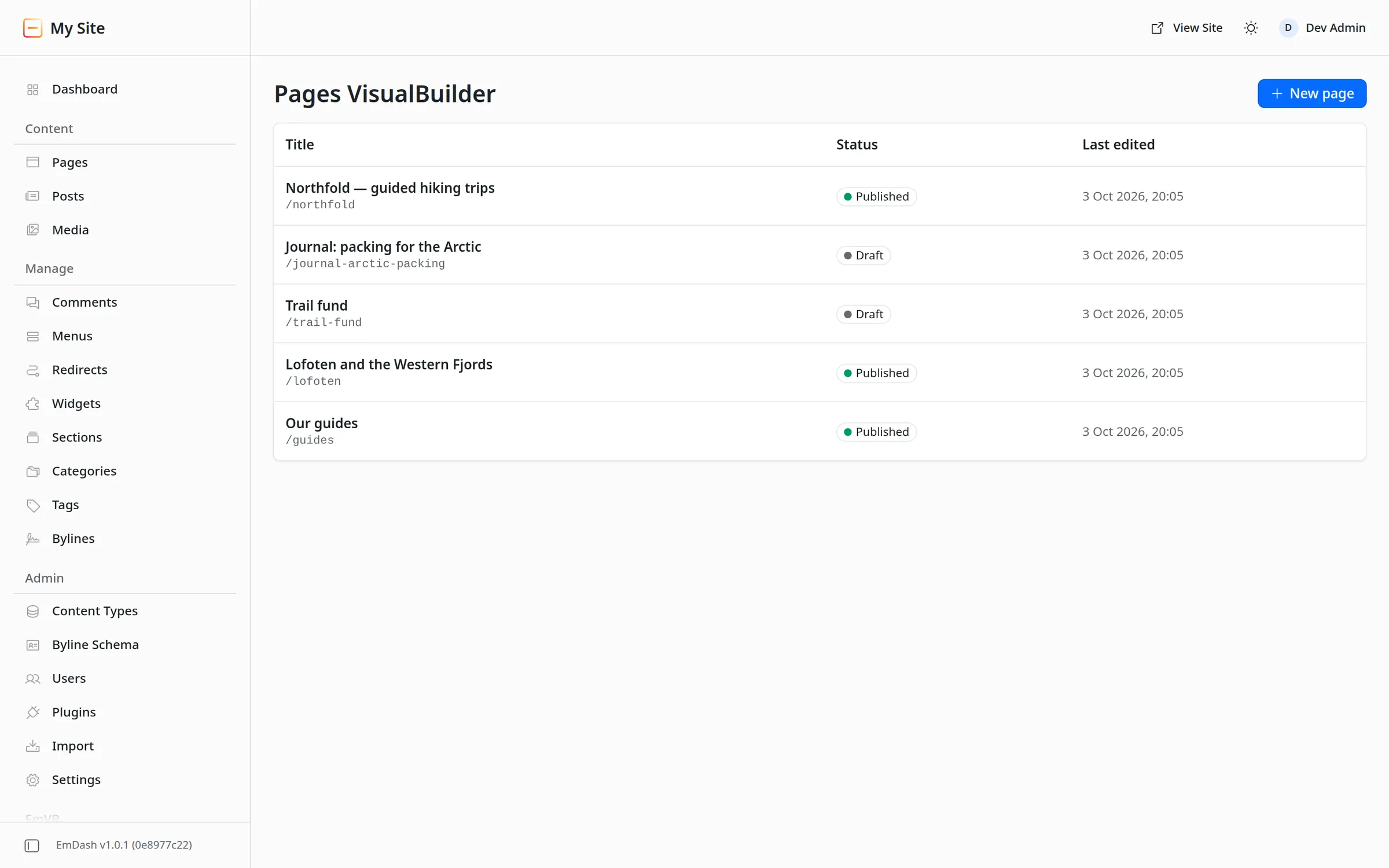
  • The Pages VisualBuilder list in the EmDash admin: five pages with their paths, Published or Draft status and last-edited time, and a New page button.Open full size
    Pages: every EmVB page with its path and status, one click from the editor.
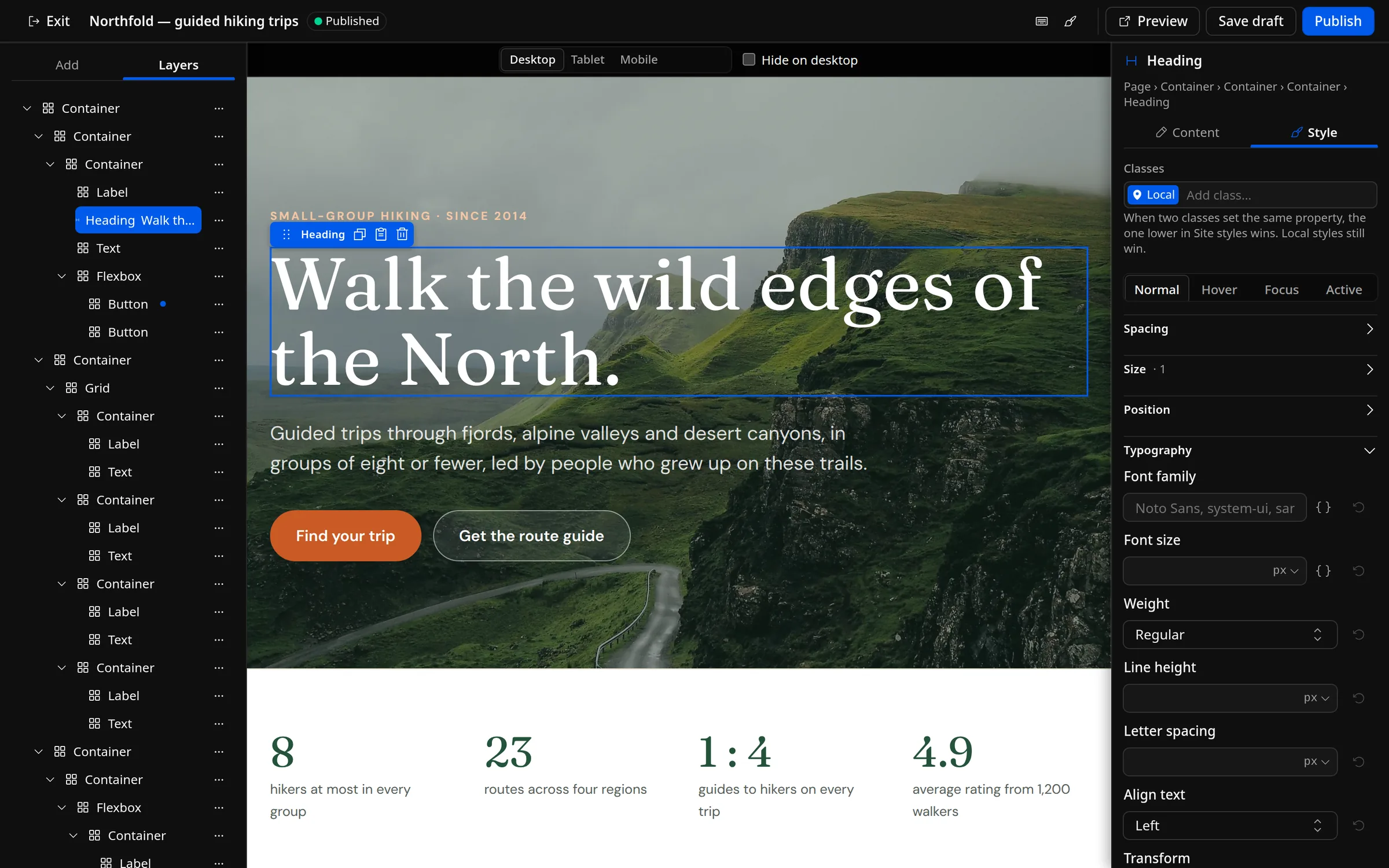
  • The EmVB editor in the EmDash dark theme, with the hero heading selected and its Typography section open.Open full size
    The editor follows the EmDash admin theme, light or dark.
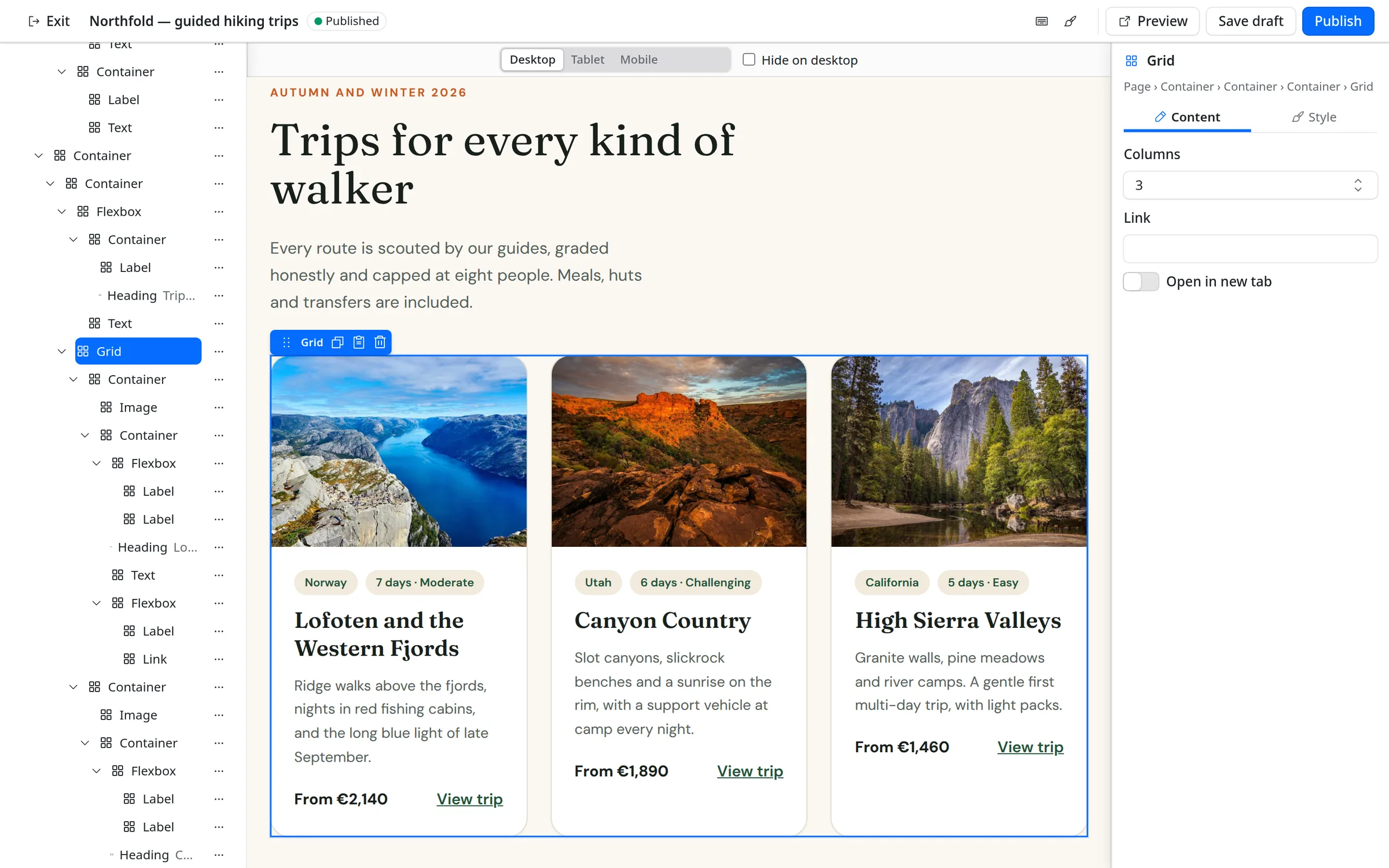
  • A Grid element with three trip cards selected; the Content panel sets Columns to 3.Open full size
    CSS Grid containers, from 1 to 12 columns, with spans on the children.
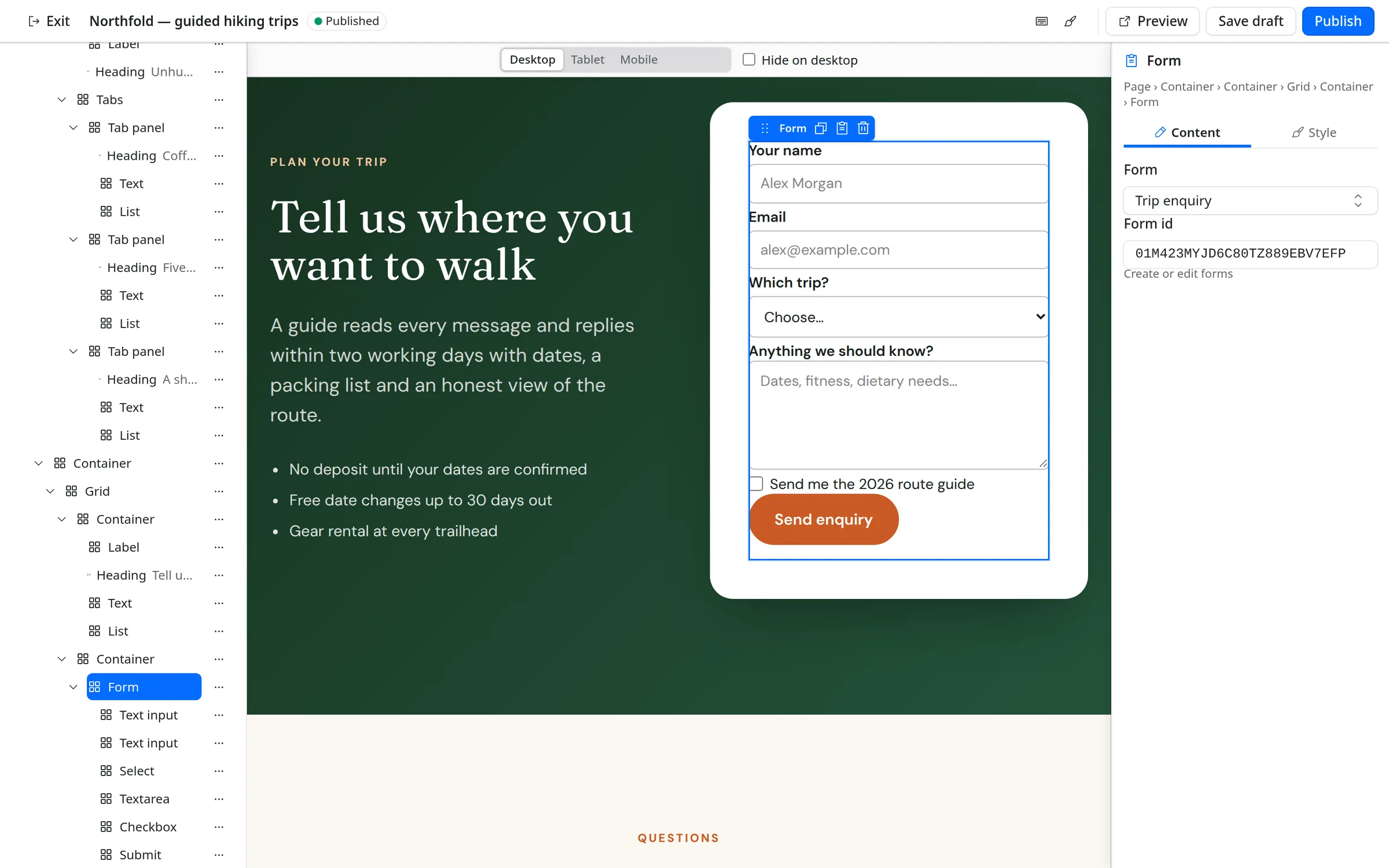
  • An enquiry form on a dark green band, selected in the editor: bordered name, email, trip and message fields, a checkbox and a Send enquiry button, with the Trip enquiry form chosen in the Content panel.Open full size
    Form elements post to the EmDash forms plugin, with clean default fields you can restyle.
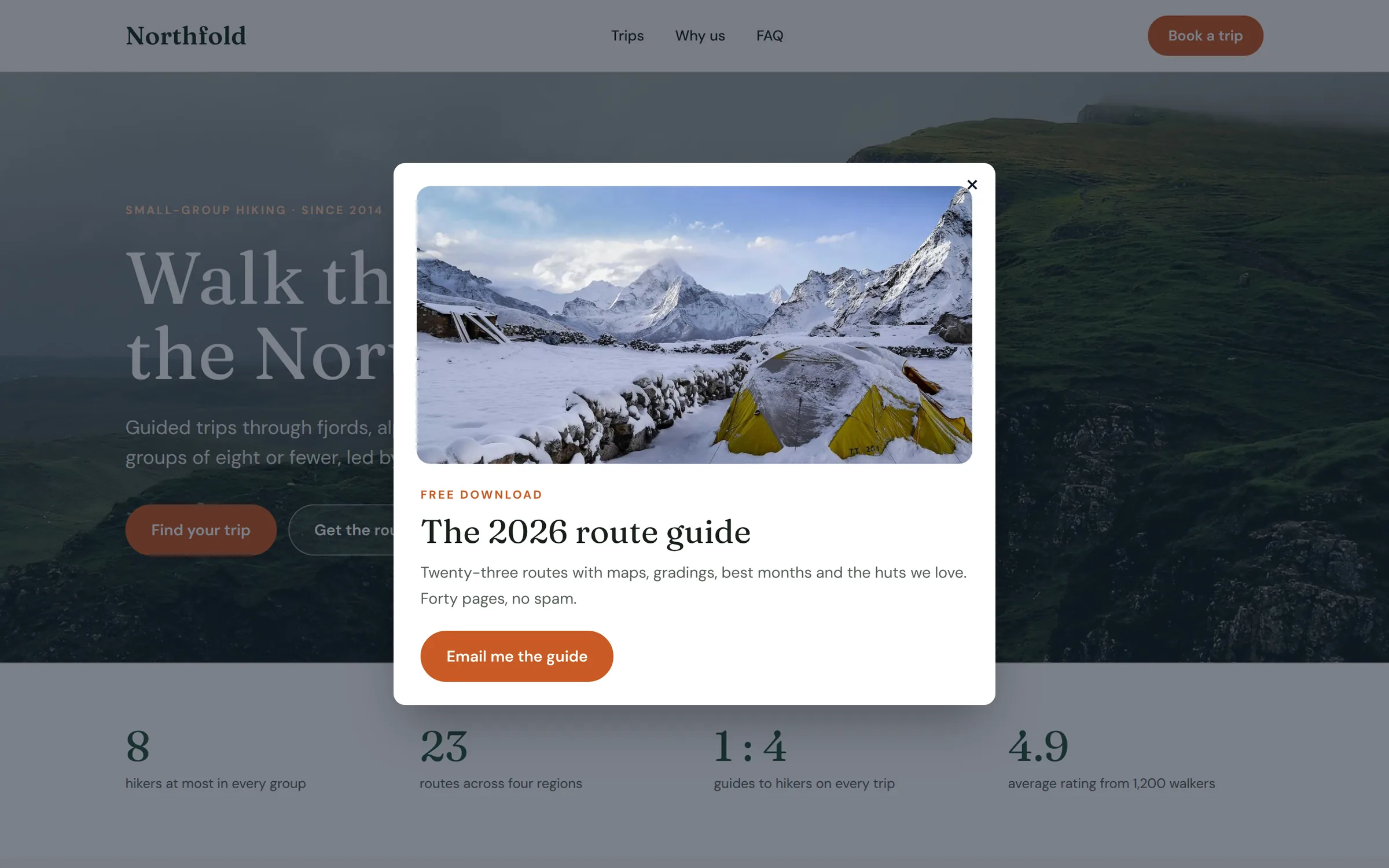
  • The published Northfold page with the route guide popup open over a dimmed hero.Open full size
    The same popup on the published page, opened by its click trigger.

Under the hood

From canvas to markup in four steps

  1. Edit

    A full-screen React and Kumo editor inside the EmDash admin. The canvas is a sandboxed iframe with scripts off.

  2. Store

    Each page is one JSON layout in the emvb_pages collection, checked against schema version 9 and the 512 KB limit before it is saved.

  3. Render

    On the server, the layout and the site design become HTML and CSS. Unknown element types render nothing.

  4. Serve

    The host’s Astro route places the result inside its own layout. Visitors download markup and styles.

Layout JSON stored
{
  "id": "page-headin002",
  "type": "heading",
  "props": { "text": "Walk the wild edges of the North.", "level": 1 },
  "style": {
    "color": { "var": "white" },
    "maxWidth": { "value": 860, "unit": "px" }
  },
  "devices": { "mobile": { "fontSize": { "value": 46, "unit": "px" } } }
}
HTML and CSS served
<h1 class="emvb-heading emvb-e-page-headin002">
  Walk the wild edges of the North.
</h1>
.emvb-e-page-headin002{max-width:860px;color:var(--emvb-c-white)}
@media (max-width: 767px){.emvb-e-page-headin002{font-size:46px}}

The hero heading of the Northfold demo, as saved and as published (line breaks added).

Performance and safety

Small output, strict input, lots of tests

Numbers from the project’s validation log, measured on the Node demo.

median server render of a 300-node page, p95 0.65 ms, against a 20 ms budget
0.33 msbench:render, 200 runs (N-002)
of gzipped CSS for that 300-node page, against a 15 KB budget
943 BW-040 performance check
Bun tests passing, none failing, at the latest full check
1714bun run check, W-101
seeded bugs caught by the test suite in the last full seeded-bug run
868 / 868bun run seeded-bugs, W-091
  • Validated on save and on read

    Every layout is checked against the schema before it is stored and again before it renders. Pages are capped at 512 KB and the design at 256 KB.

  • Sanitised output

    The HTML serializer escapes by construction, links pass a protocol allowlist and inline SVG is sanitised. The editor canvas is a sandboxed iframe with scripts off.

  • Role-checked writes

    Every write route needs an editor role or above. Logs carry ids and error codes, never page content.

  • Accessible by default

    Focus styles target :focus-visible, accordions are native <details>, and entrance animations and transitions stop under prefers-reduced-motion.

Get started

Run it locally in a few minutes

From the repository root, install and start the Node demo. The Cloudflare demo, with D1 and R2, runs with bun run demo:cf on port 4412.

bun install# Bun and Node; Bun 1.4.2 and Node 24 are verified

bun run demo:node# Node + SQLite demo on http://127.0.0.1:4411

  1. Sign in to the demo admin with the dev-only bypass link below.
  2. Open Pages VisualBuilder and click Set up EmVB once.
  3. Click New page, edit the heading and Publish. The page is served at /your-slug.

Adding EmVB to your own EmDash site? Follow the guide at docs/guides/install-in-a-host-site.md in the repository. The npm package is private for now.

FAQ

Questions people ask first

Does EmVB add JavaScript to my site?

No EmVB script loads on a normal page. Two small scripts are the exception: the popup script, only on pages where a popup can open, and the tabs script, which adds keyboard support to tabs that already work with CSS alone. Forms use the EmDash forms plugin’s own script.

Which EmDash version does it need?

EmDash CMS 1.0.x. EmVB is a native plugin. It adds its own section to the admin sidebar with Pages VisualBuilder and Theme Builder.

Where does it run?

Anywhere EmDash runs. The repository has two demos: Node with SQLite, and Cloudflare Workers with D1 and R2. The same stored layout renders the same way on both.

Can editors break the site?

Layouts are validated against the schema on save and again on read, so a malformed page is refused rather than rendered. Size limits apply, inline SVG is sanitised, and only editors and above can write.

Can I move a design to another site?

Yes. The Site styles drawer exports the site design as JSON, and the other site imports it.

Is it on npm?

Not yet. The package is private for now, so you install it from the repository. The host-site guide walks through it.